RustFile icon

Two panes. One keyboard.
No more window juggling.

A fast, keyboard-first file manager for people who move files for a living. Copy with one key, drag straight across, and see both sides at once.

macOS 11+ · Apple Silicon & Intel · Windows and Linux in preview · Free for personal use

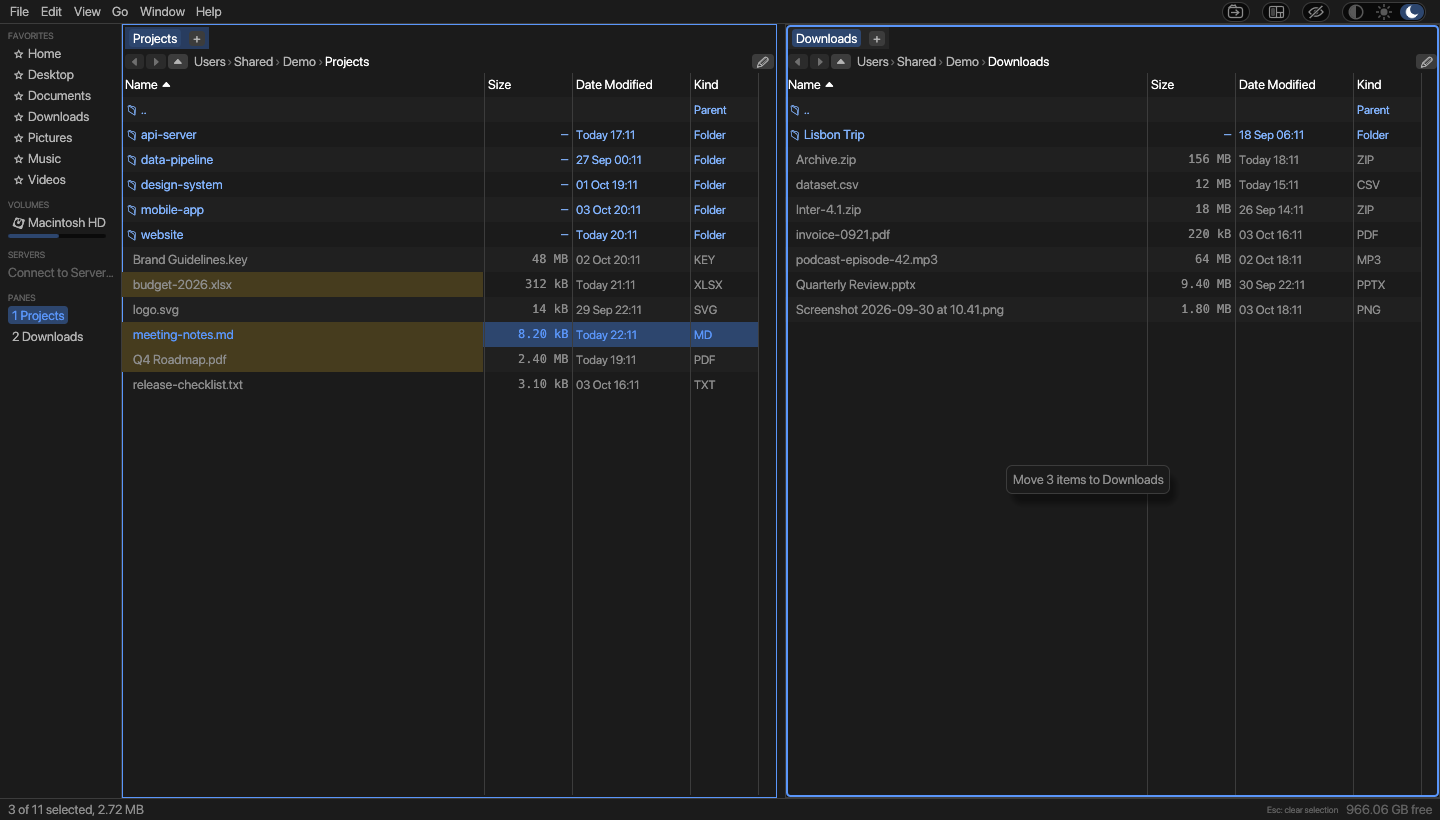
RustFile with two panes: three files selected in Projects are being dragged onto Downloads, which is highlighted with the hint 'Move 3 items to Downloads'

Select on the left, drop on the right. The target tells you what will happen before you let go.

Why two panes?

The source on the left.
The destination on the right. Always.

Copying a file in a single-window file manager is a small expedition: open a second window, find the destination, arrange the windows so both are visible, drag, then tidy up. Do that twenty times a day and it adds up.

⚡

One key to copy

Select files, press F5. They're copied into the other pane. F6 moves them. No clipboard, no second window, no navigating twice.

🖱️

Drag straight across

Drag a selection onto the other pane or straight onto a folder. Like Finder, it moves on the same disk and copies onto another one; hold ⌥ to copy, ⌘ to move.

👀

Compare at a glance

Two folders side by side, sorted the same way: spot the missing file, the newer version, the bigger download.

🗂️

Tabs in every pane

Each pane keeps its own tabs and history, so your usual places stay one keystroke away: ⌘T, ⌘W, ⌘⇧].

➕

Need a third?

⌘⇧D adds another column, up to six. Sort photos from Downloads into two albums at once, then close it with ⌘⇧W.

⌨️

Hands stay on the keys

Every action has a shortcut and lives in the searchable Actions Panel. The mouse is welcome, never required.

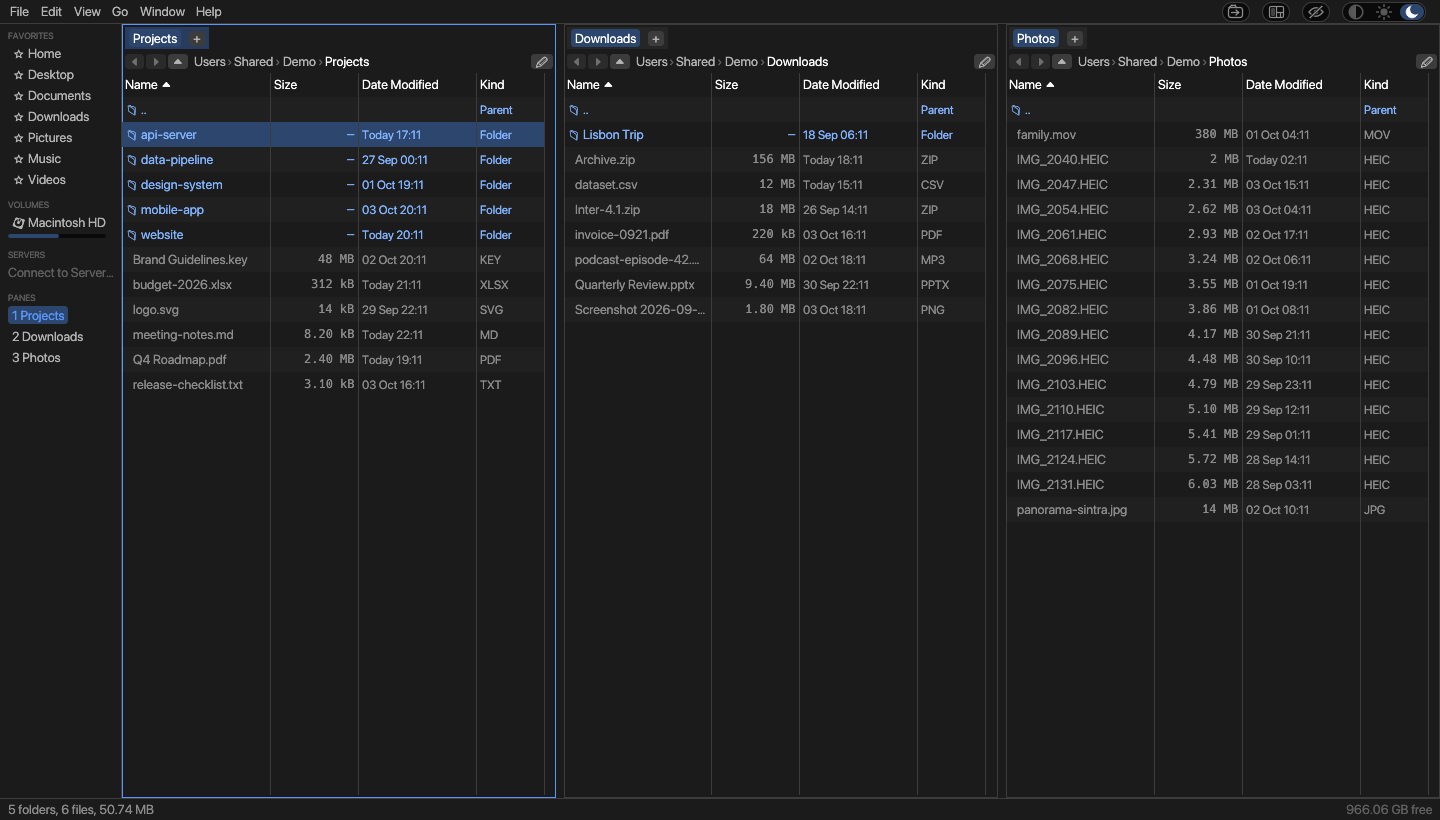
Three columns: Projects, Downloads and Photos side by side in dark mode

Features

Everything a file manager should do.
Nothing in your way.

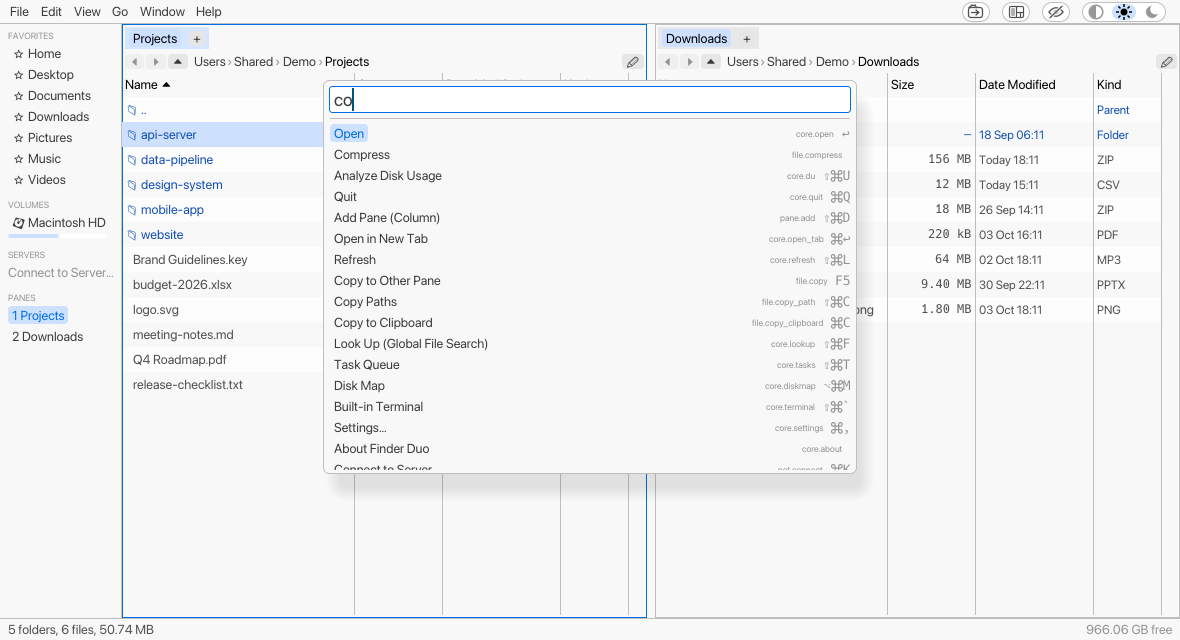
The Actions Panel open with the query 'co', listing Compress, Copy to Other Pane, Copy Paths and more with their shortcuts

Everything is one search away

Actions Panel ⌘⇧P
Fuzzy-search every command and run it with ↩. Each result shows its shortcut, so the panel quietly teaches you the keyboard.
Quick Search ⌘F
Type to narrow the current folder. Toggle regular expressions with ⌥⌘R.
Look Up ⌘⇧F
Search the whole disk through Spotlight on macOS, Everything on Windows (when installed), or plocate/fd on Linux. Without an index it walks the folder you're in.
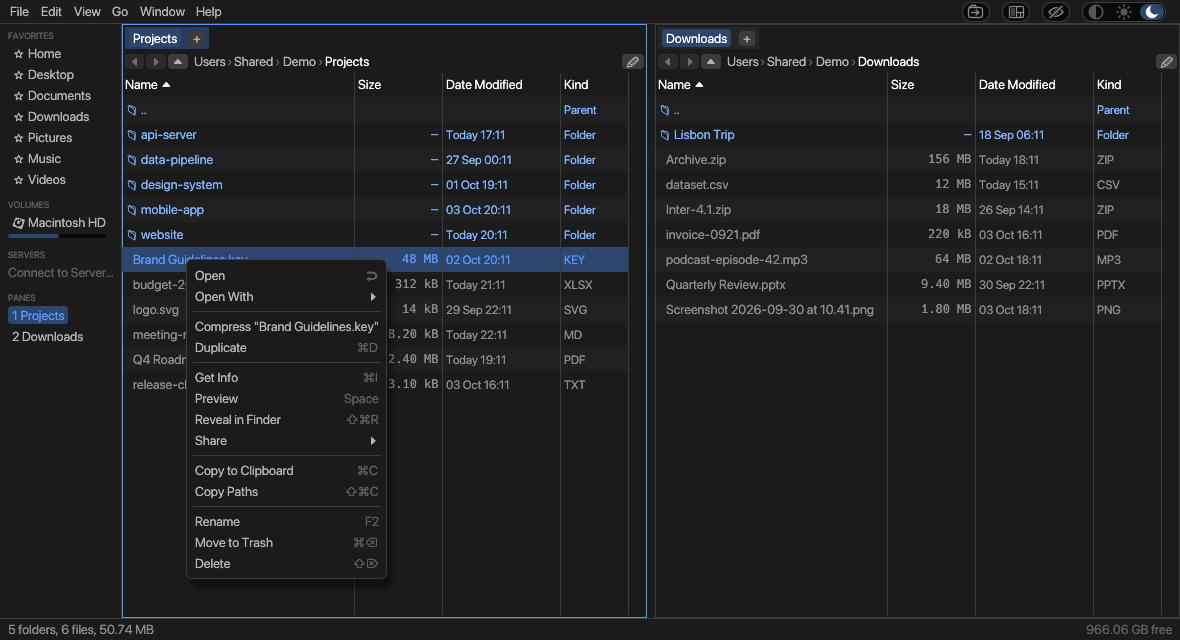
Right-click menu on a Keynote file with Open, Open With, Compress, Duplicate, Get Info, Preview, Reveal in Finder, Share, Copy to Clipboard and more

Feels at home on your desktop

Right-click like Finder
Open With (with app icons), Compress to .zip, Duplicate, Get Info, Reveal in Finder, Share via AirDrop, Mail or Messages.
A real clipboard
⌘C puts actual file references on the system clipboard: paste them into Finder or Explorer, or copy in Finder and ⌘V here.
Drag in, drag out
Drop files from Finder onto a pane or a folder row. Drag files out onto Finder, the desktop, Mail or any other app (macOS, Windows, and Linux on X11).
Quick Look
Press Space for the system Quick Look panel on macOS: documents, code, images, PDFs and video, rendered natively. Windows and Linux get a built-in preview.
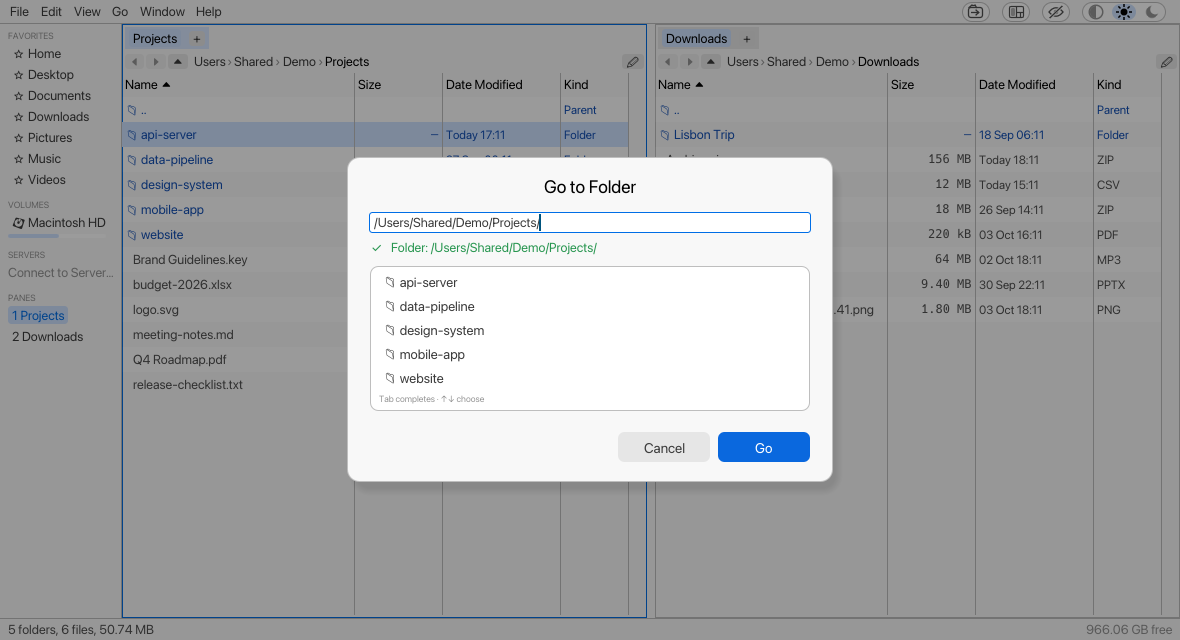
Go to Folder with /Users/Shared/Demo/Projects/ typed in: the path is checked as a folder and its subfolders are suggested below

Jump to any folder

Go to Folder ⌘G
Paste any path: ~/Downloads, a quoted path, a file:// URL, $HOME or an sftp:// address. It checks the path as you type, completes folder names with Tab, and selects the file when the path points to one.
Favorites, volumes and servers
The sidebar keeps your usual folders, every mounted disk with its free space, and the servers you've connected to, one click away.
Disk Map of a home folder: nested boxes sized by disk use, with Movies, Downloads, Projects, Pictures, Music and Library, and big files such as Xcode.xip and clip-3.mov standing out

See the whole disk at once

Disk Map ⌥⌘M
Every folder becomes a box sized by the space it really takes, with the files inside it coloured by type. The 4 GB installer you forgot about is the biggest thing on screen. Click it to select it in the pane; click a folder's header to zoom in.
Analyze Disk Usage ⌘⇧U
Computes the real size of every folder in the background and draws a bar under each one, so the 1.25 GB culprit jumps out. Sort by Size and the biggest folders rise to the top.
Task Queue ⌘⇧T
Copies, moves, compressions and deletions run in the background, one after another, with progress, pause, resume and cancel. A cancelled copy never leaves a half-written file behind.
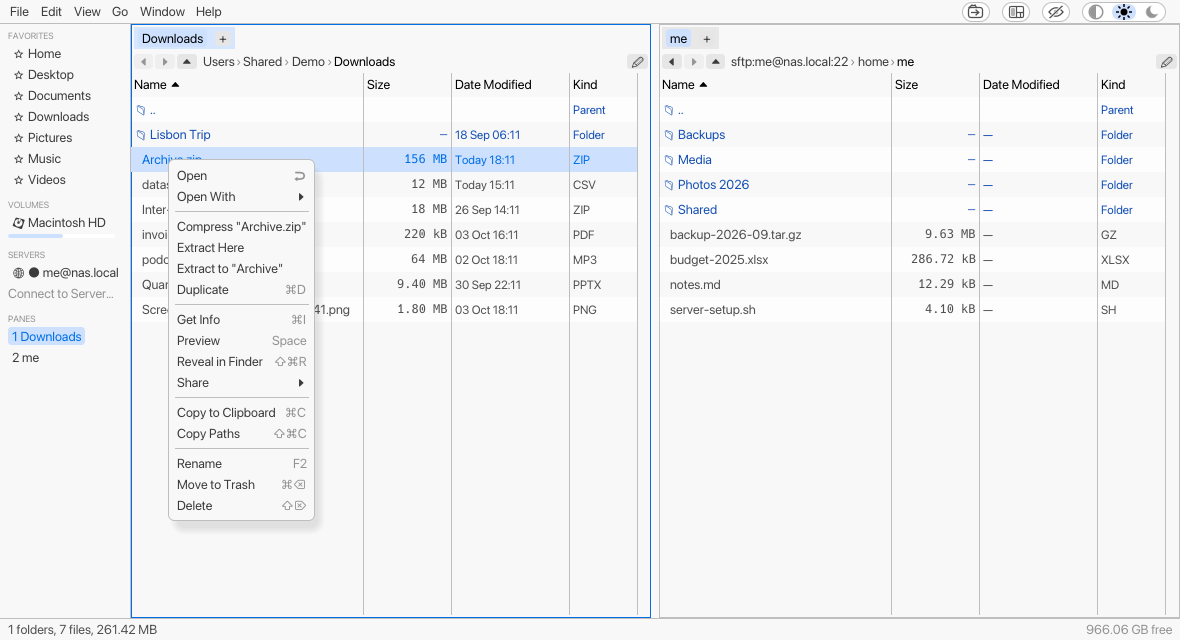
Downloads on the left with the right-click menu of Archive.zip showing Extract Here and Extract to "Archive"; a NAS connected over SFTP on the right

Servers and archives, like any folder

Archives as folders
Press ↩ on a .zip, .7z or .tar (gz, bz2, xz) to work inside it like any folder, Quick Look included. Copy, move, rename and delete in and out of it; each change rewrites the archive safely and keeps everything you didn't touch.
Extract Here
Right-click a .zip, .7z or .tar archive for Extract Here or Extract to its own folder. Runs in the Task Queue and never overwrites a folder that's already there.
SFTP, FTP and WebDAV servers ⌘K
Work in a server's folders like local ones: copy, move, rename and delete in either direction, or drag between panes. SFTP with your SSH keys and host-key checks, FTPS and FTP, and WebDAV for Nextcloud, ownCloud and Synology. Passwords are never saved.
A Git repository with the Git column showing Ignored, Modified, New and Staged, and the built-in terminal below running git status and git log

Made for developers

Git status at a glance
Inside a Git repository a Git column appears by itself: Modified, Staged, New, Ignored or Conflict for every file and folder, with the branch and change count in the status bar.
A real terminal ⌘⇧`
Your own shell docked under the panes: colours, vim, htop, tab completion, scrollback. cd moves the pane, and moving the pane cds the shell when it's at its prompt.
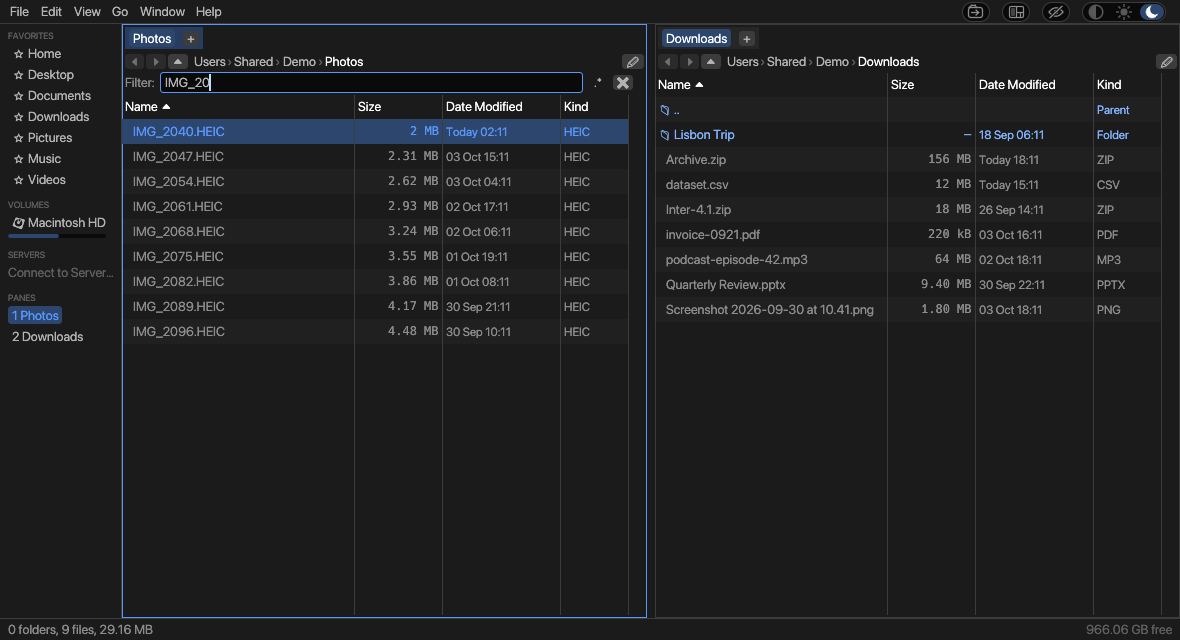
Quick Search filtering a Photos folder to files matching IMG_20

Find it, then act on it

Filter as you type
Quick Search narrows any folder instantly, even with tens of thousands of entries. The list is virtualised and never blocks on disk.
Columns you choose
Right-click a header for Date Modified, Created, Last Opened, Added, Size, Kind or app Version. Click a header to sort, again to reverse.
And the small things
A .. row to go up, back/forward history, breadcrumbs you can click or type into, hidden files on ⌘⇧. or the eye button, live refresh, and Auto / Light / Dark themes.
Bulk rename: eight photos with camera, phone and chat-app names previewed as Lisbon 2026 1.JPG to Lisbon 2026 8.jpeg

Rename a whole batch at once

From DSC_4812.JPG to Lisbon 2026 1.JPG
Select the files, right-click ▸ Rename N Items… (or press F2) and type a pattern. Camera, phone and chat-app names become one tidy, numbered series.
Templates or find & replace
Tokens for the name, a counter (start, step, padding), the date and the folder, or plain and regex replacements, plus lowercase, UPPERCASE and Title Case.
Extensions stay right
Each file keeps its own extension unless you change them all. .tar.gz stays whole and folders are never split at a dot.
Nothing breaks
A live preview shows every new name. Clashes and invalid names are flagged before anything is renamed, and swapping two names just works.
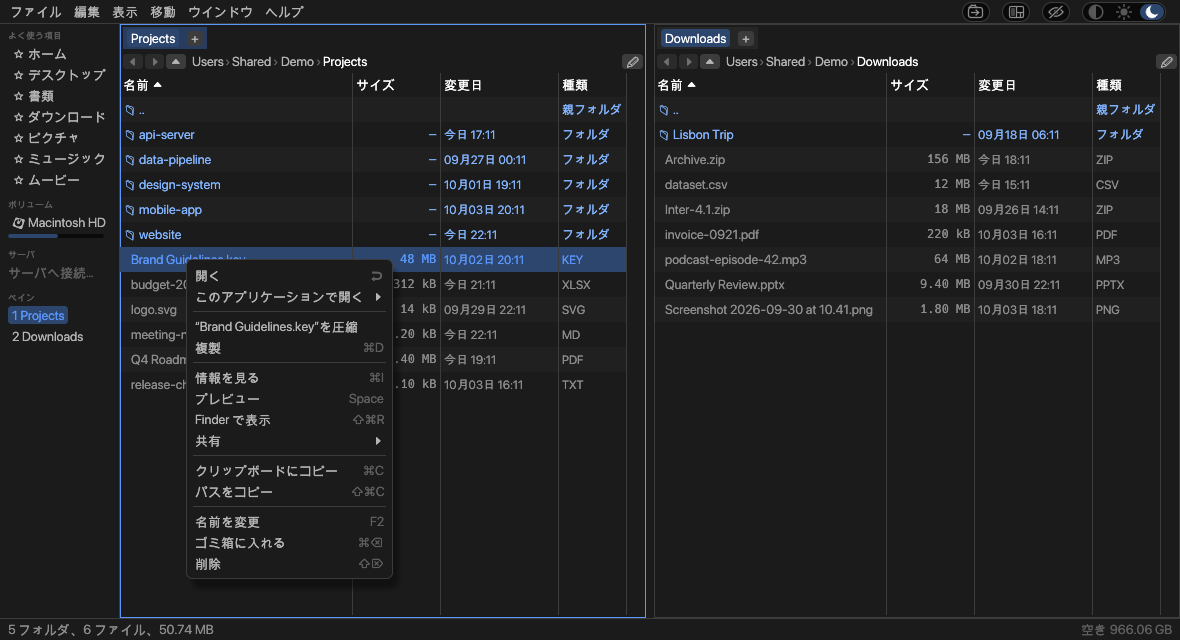
RustFile in Japanese with a right-click menu open: 開く, 情報を見る, ゴミ箱に入れる

Speaks your language

Ten languages
English, Tiếng Việt, 简体中文, 日本語, 한국어, Español, Français, Deutsch, Português (Brasil) and Русский. It follows your system language, or pick one in Settings. Icon buttons have names for screen readers.

RustFile Pro

A simple license for commercial use.

RustFile is licensed under the PolyForm Noncommercial License 1.0.0 for personal, hobby, educational, research, and other permitted non-commercial use. Commercial or internal business use requires a paid RustFile Pro license: US$4.99 once for each user. It never expires.

💼

Commercial and internal use

One license is required for each person using RustFile for business, paid client work, or an organization’s internal operations.

∞

One-time purchase

Pay once for lifetime commercial-use rights. There is no subscription or automatic renewal.

✓

All features are included

RustFile Pro does not unlock a feature tier. The app’s functionality is available to every permitted user.

On macOS, RustFile Pro is a non-consumable App Store purchase. On Windows and Linux, purchase through secure Stripe Checkout. Read the PolyForm Noncommercial License or the Commercial License Terms & Conditions.

Keyboard

Learn five keys. Use it all day.

Every action has a shortcut, and every shortcut can be remapped. On Windows and Linux, read Ctrl for ⌘ and Alt for ⌥.

Move around

Switch paneTab ← →
Open↩
Up one level⌫
Back / Forward⌘[ ⌘]
Go to folder⌘G
Connect to server⌘K
Same folder in other pane⌘=
Swap panes⌘U
New / Close tab⌘T ⌘W
Add / Close column⌘⇧D ⌘⇧W

Work with files

Copy to other paneF5
Move to other paneF6
RenameF2
New folder / fileF7 ⌘N
Trash / Delete⌘⌫ ⇧⌦
Duplicate / Get Info⌘D ⌘I
Copy / Paste files⌘C ⌘V
Select all⌘A
PreviewSpace

Tools

Actions Panel⌘⇧P
Quick Search⌘F
Look Up (whole disk)⌘⇧F
Task Queue⌘⇧T
Analyze Disk Usage⌘⇧U
Disk Map⌥⌘M
Built-in terminal⌘⇧`
Reveal in Finder⌘⇧R
Hidden files⌘⇧.
Light / Dark⌘⇧M

Download

Get RustFile

Free for personal and other non-commercial use. RustFile Pro is a US$4.99 one-time commercial license per user for commercial and internal business use. Each download comes with a .sha256 checksum.

macOS

11+ · Universal
RustFile-…-macos-universal.dmg

Open the disk image and drag RustFile to Applications. If the build isn't notarised, right-click the app and choose Open the first time.

Download .dmg Download on the Mac App Store

Windows

Preview
RustFile-…-windows-x64.zip

Unzip and run RustFile.exe. Windows 10 and 11, x64.

Download .zip

Linux

Preview
RustFile-…-linux-x86_64.tar.gz

Unpack and run ./install.sh, which installs to ~/.local/bin/rustfile with a menu entry.

Download .tar.gz

The Windows and Linux builds come from the same code but have seen far less use than the macOS app. Report anything odd.